
On this page, you can download HyperOS 3 (OS3.0.20.0.WPJCNXM) flash file for Redmi Turbo 5/POCO X8 Pro (China) based on Android version.

The Redmi Turbo 5/POCO X8 Pro (Codenamed: klee) HyperOS OS3.0.20.0.WPJCNXM for China is available as:
- Full Recovery ROM – Full ROM package for installs via Recovery.
- Full Fastboot ROM – Full ROM package for clean installs.
Follow the detailed tutorial on how to install HyperOS OS3.0.20.0.WPJCNXM on Redmi Turbo 5/POCO X8 Pro (China) from here – Fastboot ROM | Recovery ROM.
Disclaimer
Flashing is a tedious process and should be carried out carefully; otherwise, it may permanently damage your device. XiaomiAdvices.com or Xiaomi is not responsible for any damage that may be caused to your device while flashing. Proceed at your own risk.
Redmi Turbo 5/POCO X8 Pro HyperOS OS3.0.20.0.WPJCNXM China Stable Recovery ROM
| RECOVERY ROM | |
|---|---|
| File Name | klee-ota_full-OS3.0.20.0.WPJCNXM-user-16.0-2f1908aa66.zip |
| Device | Redmi Turbo 5/POCO X8 Pro |
| Codename | klee |
| HyperOS Version | OS3.0.20.0.WPJCNXM |
| Android | n/a |
| Branch | Stable |
| Region | China |
| Type | Full |
| Size | 7.9 GB |
| Date | 2026-02-10 |
| MD5 | 2f1908aa66c8d33ce808d1e560a51a1f |
Redmi Turbo 5/POCO X8 Pro HyperOS OS3.0.20.0.WPJCNXM China Stable Fastboot ROM
| FASTBOOT ROM | |
|---|---|
| File Name | klee_images_OS3.0.20.0.WPJCNXM_20260204.0000.00_16.0_cn_7b1b840952.tgz |
| Device | Redmi Turbo 5/POCO X8 Pro |
| Codename | klee |
| HyperOS Version | OS3.0.20.0.WPJCNXM |
| Android | 16.0 |
| Branch | Stable |
| Region | China |
| Type | Full |
| Size | 10.3 GB |
| Date | 2026-02-04 |
| MD5 | 7b1b840952d35176e785b41d42ac2cbd |
How to Flash HyperOS OS3.0.20.0.WPJCNXM Fastboot ROM on Redmi Turbo 5/POCO X8 Pro (China)
- Download and extract the Redmi Turbo 5/POCO X8 Pro HyperOS OS3.0.20.0.WPJCNXM Fastboot ROM on your computer. Make sure to check if the ROM file suffix is “.tgz“. If it is “.gz“, please rename it to “.tgz“.
- Download and extract Mi ROM Flashing Tool on your computer.
- Make sure your Redmi Turbo 5/POCO X8 Pro’s bootloader is unlocked.
- Power off and boot Redmi Turbo 5/POCO X8 Pro (China) into Fastboot Mode by pressing the Volume Down and Power buttons together until you see the Fastboot logo.

- Connect your device to computer using USB Cable.
- Run XiaoMiFlash.exe and select the HyperOS OS3.0.20.0.WPJCNXM Fastboot ROM folder.
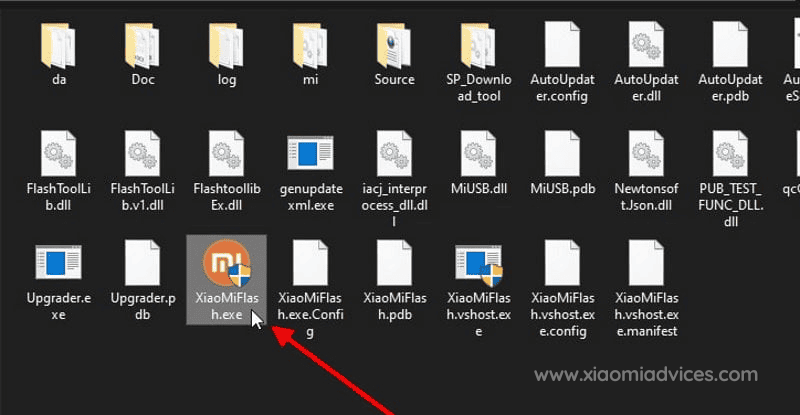
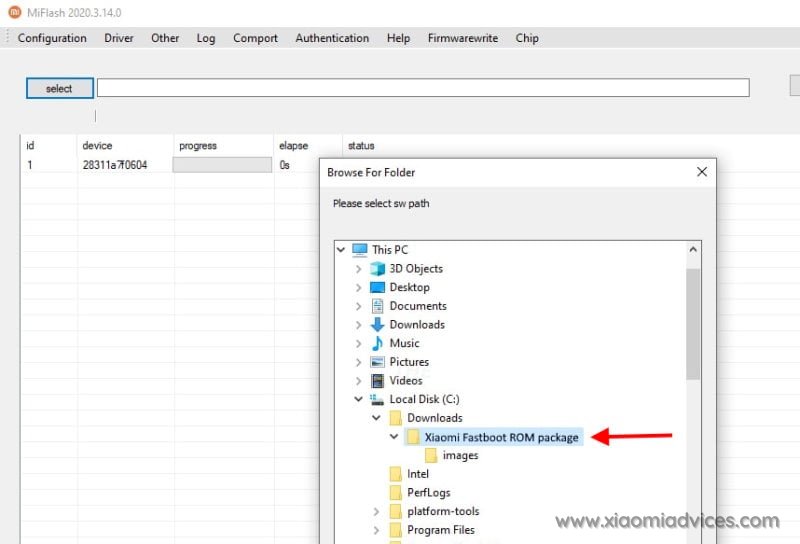
- Click on refresh to detect your device and click on flash to start the flashing process.
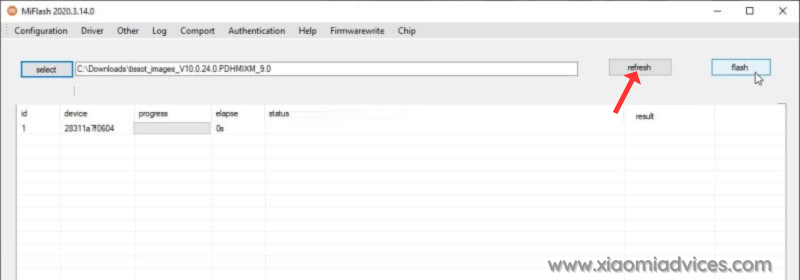

Follow the detailed guide on how to flash HyperOS OS3.0.20.0.WPJCNXM Fastboot ROM on Xiaomi, Redmi and POCO devices here.
How to Install HyperOS OS3.0.20.0.WPJCNXM Recovery ROM on Redmi Turbo 5/POCO X8 Pro (klee) via Stock Recovery
We can update the Redmi Turbo 5/POCO X8 Pro (China) firmware via recovery without using computer. However, the Recovery ROM HyperOS version must be higher than your current installed version, as downgrading firmware is blocked by Xiaomi.
While user data is retained when flashing via stock recovery, it’s recommended to backup your Redmi Turbo 5/POCO X8 Pro (China) data before installing, in case of accidental data loss.
Follow the steps to install HyperOS OS3.0.20.0.WPJCNXM Recovery ROM on Redmi Turbo 5/POCO X8 Pro using stock recovery:
- Download the Redmi Turbo 5/POCO X8 Pro HyperOS OS3.0.20.0.WPJCNXM Recovery ROM zip for China region.
- Rename the zip file to “update.zip” if the name differs.
- Transfer the update.zip to the root of your phone’s internal storage.
- Press and hold the Volume Up and Power buttons together to boot into recovery mode. For some devices you’ll have to press Volume Up, Volume Down and Power buttons to boot into recovery mode.
- The update will automatically start flashing if the correct ROM zip is detected.
- Once firmware installation completes, your phone will reboot into the updated HyperOS OS3.0.20.0.WPJCNXM version. User data and apps are retained after the process.
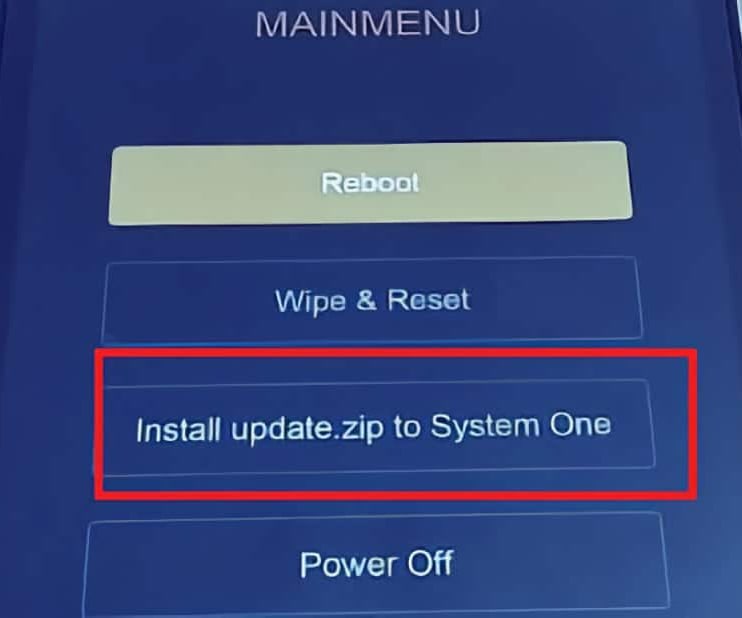
For older Xiaomi phones, you may need to manually select “Install update.zip to System One” from the Recovery menu. After install, exit Recovery and boot into HyperOS.
Install HyperOS Recovery ROM on Redmi Turbo 5/POCO X8 Pro via Software Updater using PC
You can install HyperOS OS3.0.20.0.WPJCNXM firmware updates on your Redmi Turbo 5/POCO X8 Pro device using a Windows PC, without needing to unlock the bootloader. This method suits for the situations like: Updating Global Stable ROM from Global Stable ROM, Updating Global Beta ROM from Global Beta ROM, Updating to Global Beta ROM from Global Stable ROM and vice versa.
Follow these steps to flash Recovery ROM on Redmi Turbo 5/POCO X8 Pro (China) using a PC:
- Download the latest Redmi Turbo 5/POCO X8 Pro (China) HyperOS OS3.0.20.0.WPJCNXM Recovery ROM zip.
- Connect your phone to the PC using a USB cable.
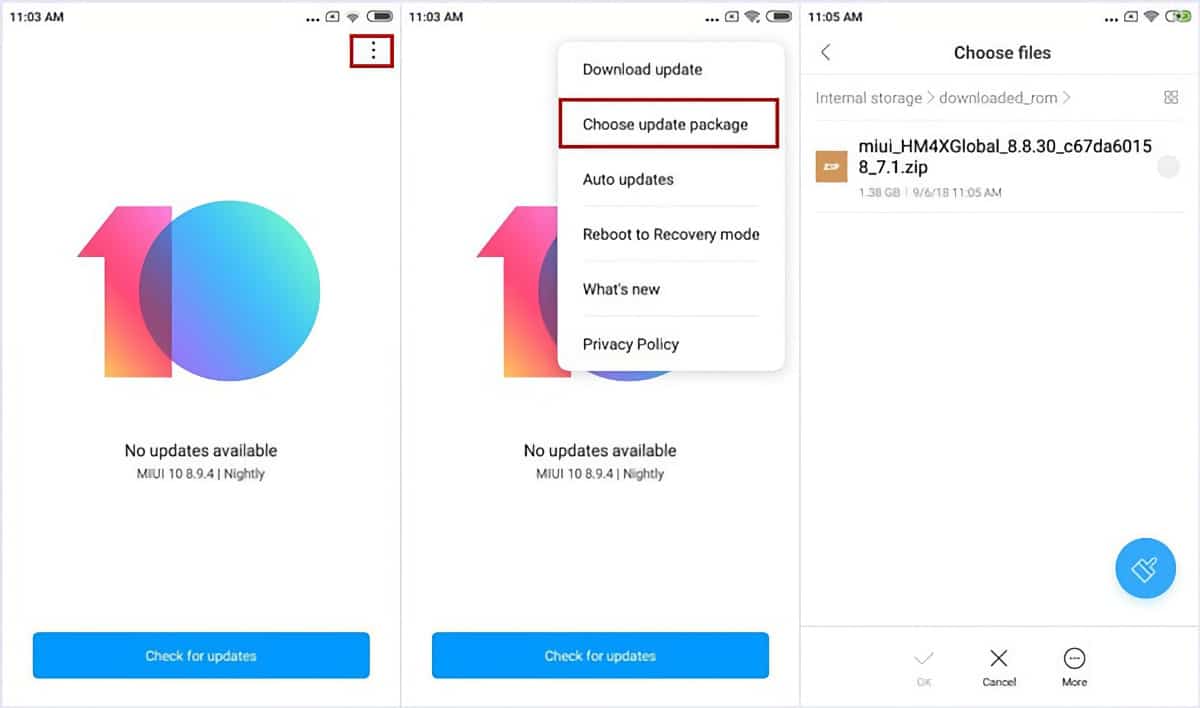
- Copy the downloaded ROM zip file to the internal storage on your device, in the “downloaded_rom” folder. If the folder doesn’t exists create it before copying the ROM file.
- On the phone, open Settings and go to About Phone → System Update.
- Tap the 3-dot menu (⋮) in the top right and select “Select update package” or “Choose update package“.
- Choose the Recovery ROM zip file you copied to the phone’s storage.
- Once you select the ROM file, the update process will start automatically and install the new HyperOS firmware version.
This method lets you update HyperOS using PC without needing to unlock bootloader or wipe data.
Follow the detailed guide on how to flash HyperOS OS3.0.20.0.WPJCNXM Recovery ROM on Xiaomi, Redmi and POCO devices here.